
SSD or More RAM?How to Tell Which Upgrade Your Computer Needs
By The Computer Solution · July 9, 2026
TL;DR
- An SSD and more RAM fix TWO different problems, so the right one depends on what’s actually slowing your computer.
- An SSD (solid-state drive) is the big SPEED jump, the fix when an old spinning hard drive is dragging everything down.
- More RAM (memory) is NOT about raw speed. It stops your computer bogging down when you have a lot open at once.
- Quick rule: still on a spinning hard drive? Usually an SSD. Under 8GB of memory? Usually RAM.
- Not sure? Don’t guess. We boot it up, watch Task Manager, check the drive’s health, and show you the proof before recommending anything.
- If it needs both, that’s a repair-or-replace talk. The assessment is always free.
“Should I add more memory, or get one of those SSD things?” It’s one of the most common questions I get, and it’s a good one. Here’s the honest answer: it depends on what’s actually holding your computer back, and there’s a simple way to find out before you spend a dime. The trick is knowing that an SSD and more RAM fix two completely different problems.
Two upgrades, two different jobs
An SSD is about speed. SSD stands for solid-state drive. It’s the modern replacement for the old spinning hard drive. If your computer still has one of those older spinning drives, swapping it for an SSD is the single most dramatic speed jump most people ever feel, boot-up and program launches go from a coffee-break to a couple of seconds.
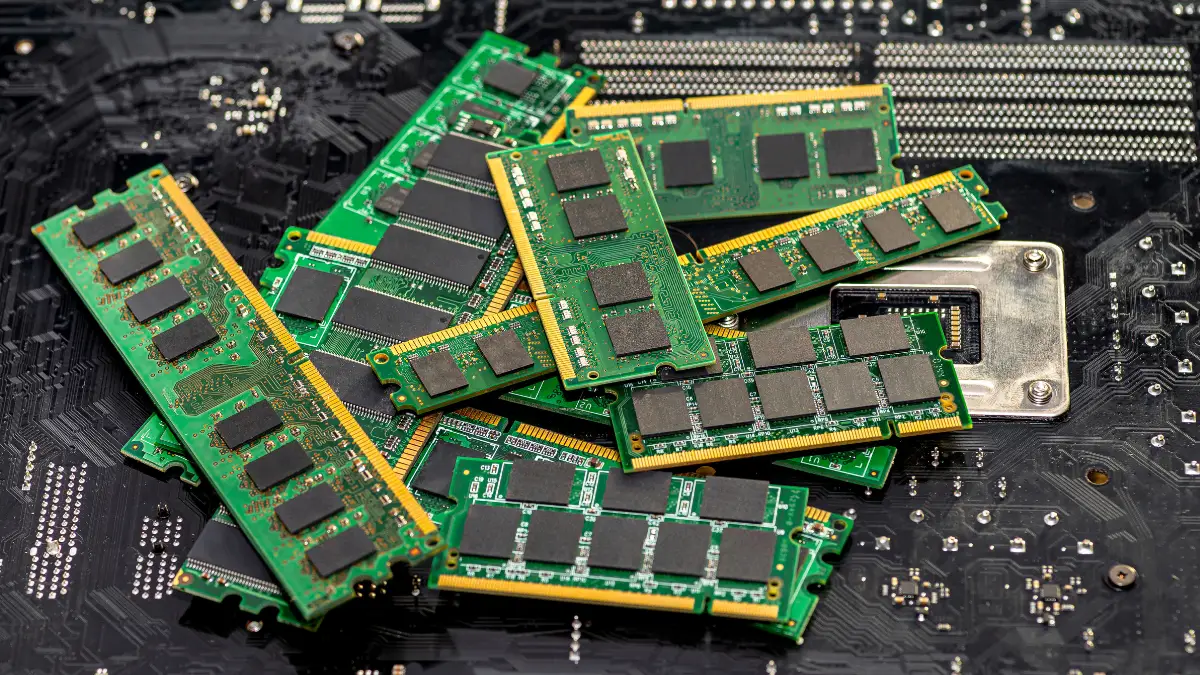
More RAM is about juggling. RAM (memory) is your computer’s workspace. It is not a raw-speed upgrade, and this is where people get tripped up. More memory doesn’t make a slow drive fast. What it does is stop your computer from bogging down when you have a lot going at once, a dozen browser tabs, a few programs, all open together. When you run low on memory, everything grinds. More of it clears that up.
So the two aren’t really competing. They fix different things: the SSD makes a slow computer fast, and more RAM keeps a busy computer from choking.
How to tell which one YOU need
Here’s how I actually figure it out on the bench, and how you can get a rough read yourself:
- Still on a spinning hard drive? That’s almost always the SSD conversation. It’s the biggest single thing dragging an older machine down. (One honest heads-up: a computer still running a spinning drive is often old enough that it’s worth asking whether a full replacement makes more sense, more on that below.)
- Have less than 8GB of memory? That’s the RAM conversation. Under 8GB just isn’t enough for most computers anymore, and you’ll feel it every time you open a few things at once. These days 16GB is the comfortable baseline.
- Not sure? Don’t guess, look. This is exactly the honest first step from why your computer is really slow: open Task Manager and watch what’s pinned at 100 percent. If the Disk is maxed, that points to the drive (an SSD). If Memory is maxed, that points to RAM. When you bring it to me, I do exactly this, boot it up, watch the numbers, check the health of your drive, and then show you the proof right on the screen for why I’m recommending what I recommend. No guessing, no upselling.
Pro Tip: the proof is on the screen
You should never have to just take a shop’s word that you “need more RAM.” A good tech shows you. If someone recommends an upgrade, ask them to point to what’s actually maxed out on the screen. If they can’t, be careful.
What if it needs both?
Sometimes the honest answer is that a machine could use a new drive and more memory. When that happens, it stops being a simple parts question and becomes a bigger one: is it worth putting that money into an aging computer, or is it better spent toward a newer one? That’s a repair-or-replace conversation, and we use a simple rule (about $150 per year of added life) to give you the straight math instead of a sales pitch.
What each one runs
So you’re not guessing on price either:
- SSD: a flat $70 to clone your setup and install it, plus the cost of the drive (sized to how much storage you actually need).
- RAM: it depends on your exact machine, some take memory in minutes, others have it soldered in and can’t be upgraded at all, and memory prices are high right now. We check your computer and give you an honest estimate first.
The full breakdown, including how we help you size the right amount, is on our RAM & SSD upgrades page.
The bottom line
SSD for speed, RAM for juggling, two different fixes for two different problems. The real answer for your computer isn’t a guess, it’s whatever Task Manager and your drive’s health actually show. Bring it in, the assessment is free, and you’ll leave knowing exactly which upgrade (if any) is worth your money.
Got a computer problem in Durango?
Free assessment, honest answers, you only pay when it’s solved.