
Blue Screen of Death:What It Means and What to Do
By The Computer Solution · July 23, 2026
TL;DR
- A blue screen is a safety stop, not a dying computer. Windows hit a problem and paused on purpose to protect itself and your files.
- There is no one cause. A single issue can throw six or eight different stop codes, so don’t over-read the exact code, but definitely log the code when you can by taking a photo of the screen.
- Overheating does NOT cause blue screens. Heat makes a computer shut off suddenly with no message. That’s a different problem.
- One blue screen after an update is usually nothing. The same crash over and over is what you actually act on.
- Basic googling is fine to try for DIY troubleshooting. The moment you feel unsure whether a step is safe, stop and ask for help.
- Back up your files now, not after. Everything that works, works right up until it doesn’t.
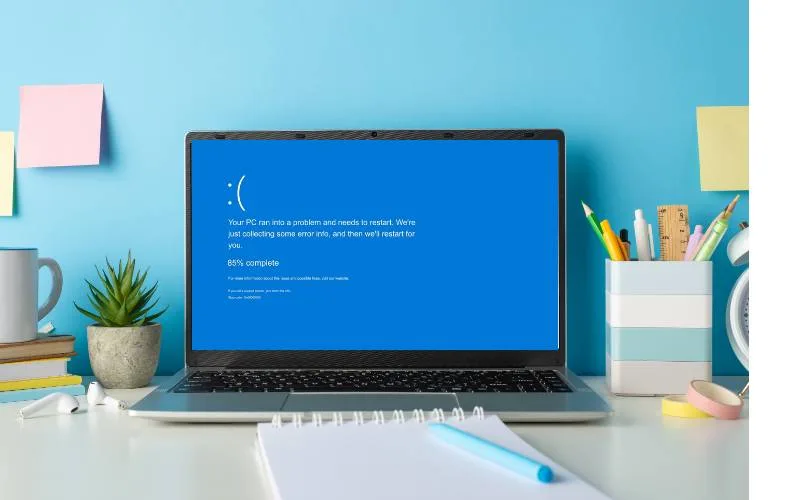
The name sounds terminal. It isn’t. A blue screen is your computer hitting the emergency brake, not flatlining. Windows ran into something it couldn’t safely keep going past, so it stopped on purpose to protect your files and your hardware. Annoying, yes. A death sentence, almost never. And here’s the part most people get wrong, which is oddly reassuring: there is no single thing a blue screen “means.” It’s one of the most varied problems out there.
What a blue screen actually is
Your computer hit a wall it couldn’t safely get around. Instead of pushing through and risking your files or your hardware, Windows stops cold and shows you the blue screen. Think of a car that cuts the engine before it damages itself. That screen usually shows a “stop code,” often with a QR code beside it. People assume the stop code is the answer. It’s more like a clue, and not always a reliable one, which brings us to the honest part.
Why there’s no single cause
After twenty years on the bench, here’s the truth: blue screens are about as random as computer problems get. The same underlying issue can throw six to eight completely different stop codes, and the causes run the whole range:
- A corrupt Windows update
- A bad firmware update
- New hardware that isn’t fully compatible
- A setting that got changed by accident, often without the person realizing they did it
- Failing memory (RAM)
If someone forced me to pick where to look first, I’d start with the RAM. But I’ll be straight with you: anyone who glances at your stop code and instantly “knows” the cause is guessing. The real work is testing, not decoding a code off the screen. That’s also why the same crash again and again is worth taking seriously, and it lines up with the other warning signs a computer gives before it fails.
The one thing it usually is NOT: overheating
This one surprises people. When a computer gets too hot, it doesn’t blue screen. It just shuts off. No message, no warning, the screen goes black and it’s done, protecting itself from cooking. So if your machine is dying silently with no blue screen at all, that’s likely a heat or power conversation, not this one, and it often shows up first as a machine that runs hot or slows to a crawl.
One-off vs. repeating: how to tell if you should worry
This is the line that tells you what you’re dealing with. A single blue screen, especially right after a Windows update or a fresh install, is often a one-time hiccup. Restart and get on with your day. But the same crash again and again is a real problem asking for attention. That’s the point where you stop trusting the machine with anything important until it’s been looked at.
What to do right now
- Write down the stop code. Snap a photo of the whole screen, QR code and all, so you have it to work from.
- Notice when it happens. At startup? Inside one specific program? Completely at random? That pattern is worth more than the code itself.
- Restart normally. One reboot is fine and sometimes all it takes.
- Don’t sit there hard-powering-off over and over. Repeatedly yanking the power while it’s struggling can turn a shaky system into a dead one.
- If you want to troubleshoot on your own, basic Google searches are fine. But the moment you’re not sure a step is safe, stop and ask. Feeling unsure is your cue to get help, not to push through it.
Back up before you need to
If the blue screens are repeating, treat it as a warning sign and back up your data immediately, before you troubleshoot, not after. I tell people this all the time: everything that works, works right up to the point that it doesn’t. A blue screen is often that point handing you a little advance notice. Take it. If a crash has already turned into a machine that won’t boot past the logo, your files can usually still be rescued, and that’s exactly what data recovery is for, but it’s far easier when you’ve backed up ahead of time.
The bottom line
Here’s the short version. A blue screen looks like the end, but it almost never is. It’s a safety stop, not a dead computer. The cause could be many things, so no one can tell what’s wrong just from the code on the screen. And it’s usually not overheating.
One blue screen is often nothing. If they keep happening, back up your files and get the machine looked at. Call us when the crashes keep coming back, it won’t start up afterward, it’s making strange noises or running hot, or you’re worried about your files. The assessment is free, so you find out what’s really wrong before you spend a dime. That beats guessing at stop codes.
Got a computer problem in Durango?
Free assessment, honest answers, you only pay when it’s solved.